
In mid-October of 2026, IT admins received an email from Google with the subject line “Important updates to your Google Workspace Terms of Service regarding Agentic AI”?
If reading through multi-page legal addendums and enterprise cloud clauses left your eyes crossed, you aren’t alone. 😵💫
Here’s the TL;DR version of the policy change: “If one of your users creates an AI agent that break something or does bad stuff, it’s your problem.”
This policy change isn’t something you need to panic over, but you do need to pay attention to your Google Workspace AI agent settings inside of your Workspace environment.
Here are three specific steps you should take in your Admin Console this week.
What is an “AI Agent” Anyway?
Over the past two years, our conversation around AI has centered on chatbots (like the Gemini App or ChatGPT). You give it a prompt, it generates text, and the interaction ends there.
AI Agents are different.
An agent doesn’t just write text; it takes action on behalf of a user. An agent can:
- Read an incoming email, decide if it’s an emergency, and file a ticket.
- Connect to third-party tools via API to update records.
- Autonomously generate, modify, share, or delete Google Drive files.
- Schedule meetings, trigger notifications, or run background scripts on a timer.
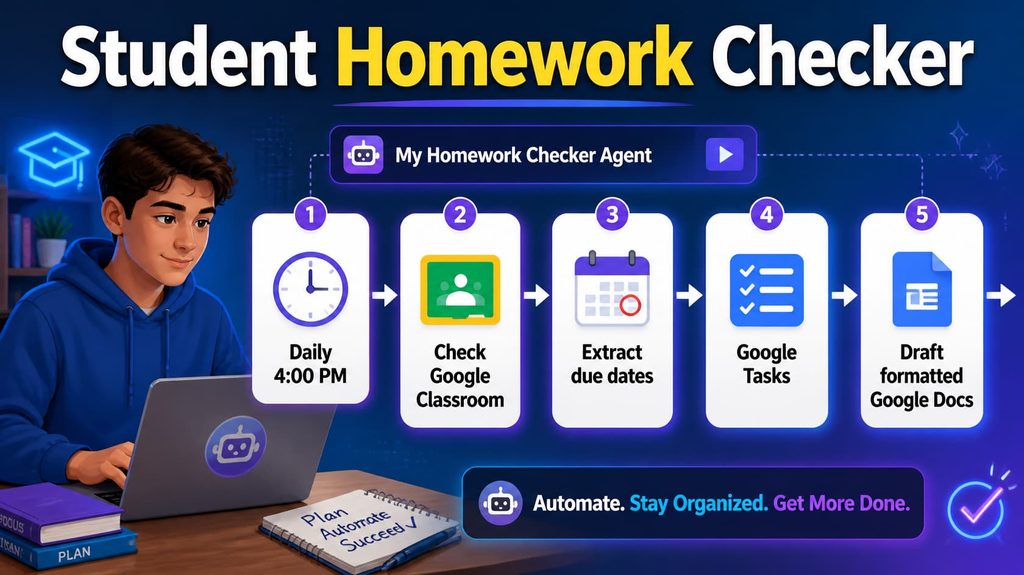
Between the rollout of Google Workspace Studio earlier this year, automated AppSheet bots, and third-party tools connecting via OAuth, AI agents are no longer science fiction—they are actively running inside Google Workspace. It’s time we start paying attention to our Google Workspace AI agent settings.
Plain-English Translation: What Google Actually Changed
Google updated its Service-Specific Terms and introduced new Agentic AI Responsible Use Guidelines. Here is a high-level summary:
- You own the liability for what your agents do: Google explicitly states that the customer (your school district) is solely responsible for any actions taken by an AI agent operating in your domain. If an agent deletes a folder, shares a confidential student document externally, or misrepresents staff, Google’s position is clear: That’s on you, not the model.
- “Bypassing Confirmation” is your responsibility: Many agentic tools include built-in safety prompts (e.g., “Are you sure you want to email these 50 parents?”). The new terms warn that if an administrator or user disables these confirmation steps to put tasks on “full auto-pilot,” the district assumes all liability for the fallout.
- Strict bans on surveillance, profiling, and circumvention: The guidelines strictly prohibit deploying agents to bypass file permissions, compile personal profiling data without consent, conducting mass automated monitoring, or hindering emergency services. Nothing too controversial here…I’m sure you don’t want your users doing any of these things with their school account!
What Does This Mean for K-12 Education?
Because AI agents operate 24/7, never get tired, and don’t go on vacation, they can be very helpful, or potentially disruptive. The risk is that well-meaning staff (or curious students) will create automated workflows that violate district policy and Google’s TOS.
For example:
- A building secretary sets up a third-party agent that connects to Gmail and automatically forwards emails containing student registration forms to a personal Gmail account.
- A high school computer science student connects a GitHub bot via OAuth that floods Google Drive with thousands of automated API requests.
- A department head connects an AI tool to evaluate spreadsheets and disables the “confirm before sending” toggle, resulting in mass erroneous emails sent to parents.
👉 Google’s updated terms make it clear: Google provides the tools, but you are the pilot.
Related Post: Are AI Agents Violating Your School’s Policy? Let’s find out!
Three Google Workspace AI agent settings you should review
You don’t need to rewrite your entire board policy by Friday, but you should take 15 minutes to tighten your technical guardrails in the Admin Console.
1. Review Existing Agents
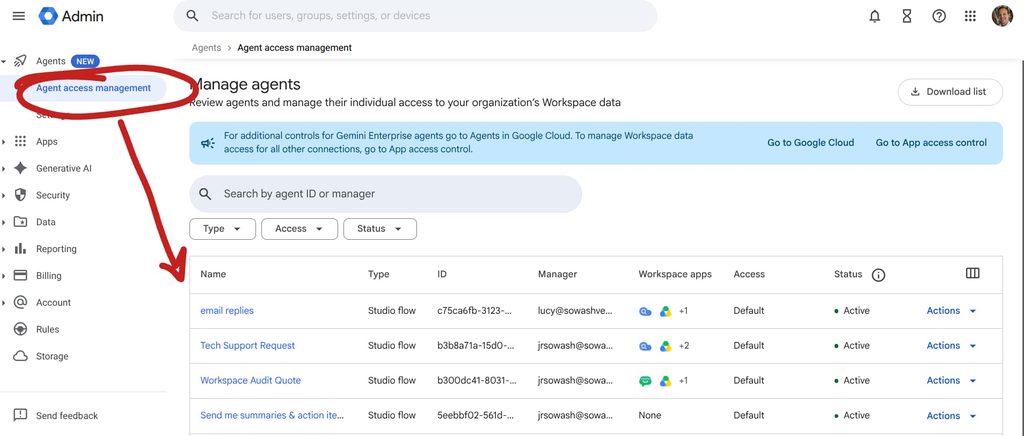
Google Workspace Studio allows users to build automated flows and custom skills without code. This service is enabled by default. Take a moment to view agents that have been created by your users:
- Where to go: Agents > Agent Access Management
- Action: This page will display agents that have been created by your users. You can view, audit, and pause agents from the admin console.
- Best Practice: users should receive training on building agents before they are given access to Workspace Studio.
Tip: If you aren’t prepared to manage agents, you can limit access to Workspace Studio to a small pilot group (like your tech department or instructional coaches) before rolling it out district-wide.
2. Establish Human-in-the-Loop Boundaries
Educate your team on one simple rule: Never automate high-stakes actions without a human check. Any automated workflow that touches Personally Identifiable Information (PII), student disciplinary notes, or external communications to parents must keep confirmation safeguards enabled.
- Where to go: Apps > Google Workspace > Settings for Workspace Studio > Approvals
- Action: If Workspace Studio is ON for users, consider requiring human approval for sensitive steps and third-party connectors.
- Best Practice: establish a district definition for “sensitive data” and “sensitive action” so that you can implement your agent limitations appropriately.
3. Audit Third-Party API Connections & OAuth Scopes
What about user-created Agents in Claude, ChatGPT, etc? If your third-party app settings are wide open, staff and students can connect external autonomous agents without your knowledge. Here’s what you need to check:
- Where to go: Security > Access and data control > API controls
- Action: Click Manage App Access. Look closely at any apps requesting high-risk scopes (like full access to Gmail or Drive).
- Best Practice: Keep unconfigured third-party apps Blocked for students under 18, and set your Staff OU to “Allow apps that only request basic info” so full-access agents require explicit IT approval.
Tip: Workspace Audit, a premium tool for Google Workspace Admins, provides detailed data on the third party applications that are connected to your domain. Click here for a free 30 day trial.
Summary
Google’s updated TOS is reasonable…they don’t want to be liable for the actions of your agents.
By keeping tight API controls, restricting agent creation to trusted staff, and ensuring humans stay in the loop for sensitive decisions, you can let your teachers embrace automation while keeping your district safe, compliant, and fully in control.


Reader Interactions