
Every K-12 IT admin gets pulled into digital detective work—whether it’s a FOIA request, a student discipline issue, a missing file, or a phishing attack. You have two tools that will help with your detective work: Google Vault and the Investigation tool. While they might seem similar, they are built for completely different jobs.
Google Vault vs. Investigation Tool
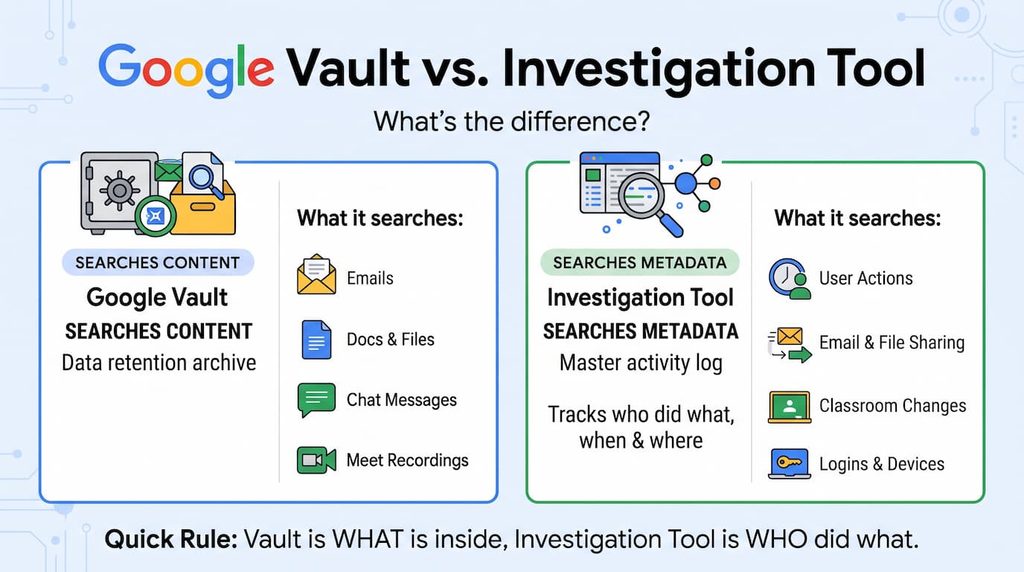
The easiest way to keep these two tools straight is to remember what each one actually searches:
- The Investigation tool searches metadata: this is your district’s master activity log. It tracks who did what, when, and from where—who sent an email, shared a file externally, removed a student from Google Classroom, or logged into a broken Chromebook.
Tip: you can access the Investigation tool here: Reporting > Audit and Investigation. Want to learn more here’s my quick start guide.
- Google Vault searches content: Included free for all EDU domains, Vault is your data retention archive. It searches the actual words inside emails, Docs, Chat messages, and Meet recordings.
Tip: visit vault.google.com to start an investigation with Google Vault. Want to learn more? Watch this video.
A quick rule of thumb: If you are asking “Did anyone type the word ‘stupid’ or ‘cheating’ in an email or Doc?”—open Vault. If you are asking “Who deleted the shared curriculum folder or changed its sharing permissions?”—open the Investigation Tool.
3 Key Differences you should know
Beyond metadata versus content, there are three critical differences that impact how you use these two tools in your school district:
1. Retention Window (6 Months vs. Forever)
- Investigation Tool: Audit logs are rolling and generally only kept for 180 days (6 months). If an incident happened last school year, the log trail is gone.
- Google Vault: Can keep data indefinitely, based on your retention rule, even if a user deletes the file or email from their own Drive or Trash.
Related Post: 🕵️♂️ Solve the case with the investigation tool
2. Taking Action (Remediation vs. Export)
- Investigation Tool: Built for active incident response. Basic education domains can search logs and diagnose what happened. Upgrading to EDU Plus (paid) lets you take immediate action right from your results—like deleting a malicious email from every inbox, moving a legitimate superintendent email out of spam, or adjusting the sharing settings for a file. Basic education domains will need to use a third party solution like GAM to resolve issues.
- Google Vault: Strictly read-only. Vault lets you place legal holds and export records for HR, legal counsel, or public records requests, but you cannot use it to delete or modify live user files.
3. Scope of Data
- Google Vault covers user-generated communication and files (Gmail, Drive, Chat, Calendar, Meet, Groups).
- The Investigation Tool covers the entire ecosystem—including device log events (tracking Chromebook serial numbers and logins), Chrome log events, Classroom log events, and User login/OAuth activity.
Quick actions to make sure you are prepared
Take ten minutes to complete these quick actions to make sure you are ready to use Vault and the Investigation tool.
- Review your Google Vault retention policy – When Google adds a new service to vault (like Gemini), you must specify your retention rule. Make sure that your retention policy matches your state and local requirements.
- Review common scenarios – the investigation tool contains an overwhelming amount of data. These slides will walk you through the search filters for common issues.
Ready for more? Join more than 4,000 IT admins who subscribe to the Google Admin Weekly and learn how to master the Google Admin Console.



Reader Interactions