

Managing user accounts is an important responsibility for Google Workspace admins. Best practices for K-12 schools require suspending inactive student accounts. This includes students who have graduated. Before you suspend the accounts of your graduating seniors, you might want to give them an opportunity to transfer their data to a personal Gmail account.
Google provides two primary tools for this: Google Takeout (downloading a .zip) and Google Transfer (copying Drive/Gmail directly to a personal account). The Google Admin console contains several policies for managing who can access these services, and what data they are allowed to export.
The Google Admin console contains several policies to help you manage Google Takeout and Transfer effectively, ensuring you know who can access these services and what data they are allowed to export. The video below will walk you through the configuration options so that you can allow users to save personal information without sacrificing data security for your organization.
🛠️ 3 Tips for smooth data transfers
1. Check your External Sharing Policies This is the #1 reason the transfer tool fails. Google Transfer works by temporarily “sharing” files with the student’s personal account to perform the copy. If your Drive settings strictly prohibit external sharing for the student OU, the transfer will error out. Consider creating a “Graduating Seniors” OU with relaxed sharing rules for their final two weeks.
FREE Resource: Google Transfer instructions for students (Google Doc)
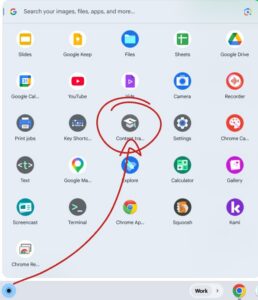
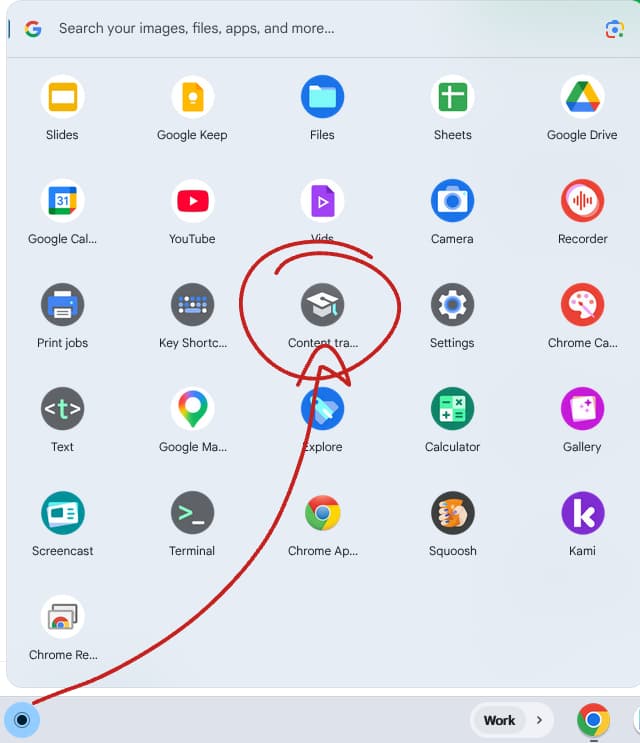
2. Enable the Chromebook “Content Transfer” App If you are a 1:1 Chromebook district, there is a hidden gem in your Device Settings. You can enable a “Content Transfer” app that shows up on student Chromebooks for easy access to the transfer page.
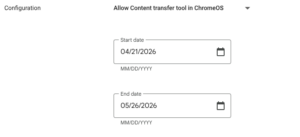
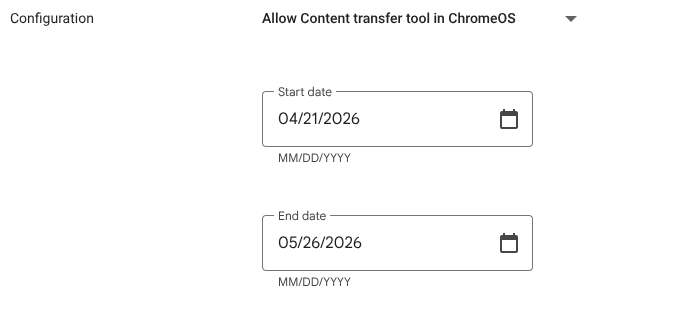
- Where to find it: Devices > Chrome > Settings > Users & browsers > Content Transfer Tool.
- Pro-Tip: You can set a start and end date for this app to be visible, so it automatically disappears after graduation day!
3. Set Expectations on Timing Students (and some staff) expect the transfer to be instantaneous. In reality, large Drive accounts can take up to a week to process. Encourage your seniors to start the process at least a week before their accounts are scheduled for deactivation.
Related Post: 10 tips for a smooth Microsoft to Google data migration
4. Mind the 15 GB Storage Limit Most personal @gmail.com accounts are limited to 15 GB of free space. If a student is trying to transfer 50 GB of school projects into a standard personal account, the transfer will fail halfway through. Remind students to check their “Storage” in the school account first and either clean up their files or ensure their destination account has a Google One subscription to handle the load.
Additional Resources:
- Transfer instructions for students
- Video instructions for students
- Workspace support article on takeout and transfer
🎓 Level up your Google Admin skills!
If you’re looking to move beyond ‘putting out fires’ and want to learn how to better manage Google Takeout and Transfer while building a rock-solid foundation for your domain, sign up for the Google Admin Weekly, my free email newsletter received by more than 4,000 IT administrators!



Reader Interactions